"No signal" almost never means a broken screen. In most cases the picture simply is not reaching it. Work through these checks in order.
1. Use a USB-C port with video
Many laptops have one USB-C port with DisplayPort Alt Mode and others that only charge or move data. Try every USB-C port. Look for a DP or Thunderbolt symbol.
2. Use the cable from the box
Most USB-C cables sold for charging phones do not carry video. Use the PORNITOR cable, or a cable marked USB 3.1/3.2 Gen 2, USB4 or Thunderbolt.
3. HDMI needs power too
On HDMI, plug in the short USB power cable as well. Without it the screen cannot switch on, or it turns off when the brightness goes up.
4. Give it enough power
If the screen flickers or restarts, connect the laptop to its charger. A laptop on battery may not supply enough power over USB-C for two screens.
5. Tell the computer to find the display
Windows: Settings → System → Display → Multiple displays → Detect, then Win + P → Extend. macOS: unplug and reconnect, then check System Settings → Displays.
6. Pick the right input
Portable monitors with several ports have an input menu. Press the menu button and select the port you are using.
7. Update the graphics driver
On Windows, update the Intel, AMD or NVIDIA driver from the maker's site and install pending Windows updates, then restart.
8. Mac with two black screens
Base M1 and M2 MacBooks support only one external display. A triple extender on one cable mirrors one image to both side screens, and a second cable will not add a third screen. See PORNITOR on a MacBook: What Works on Each Chip.
Model in this guide
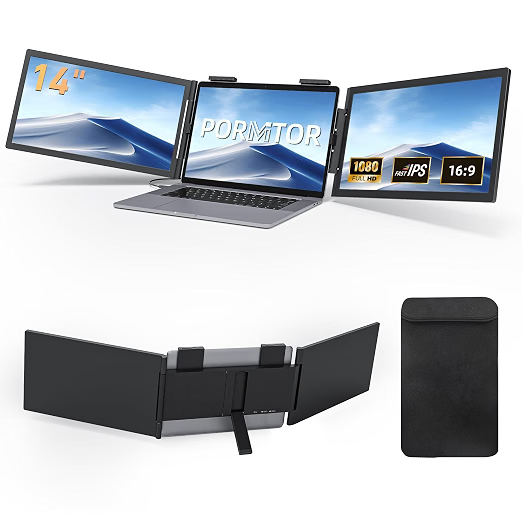
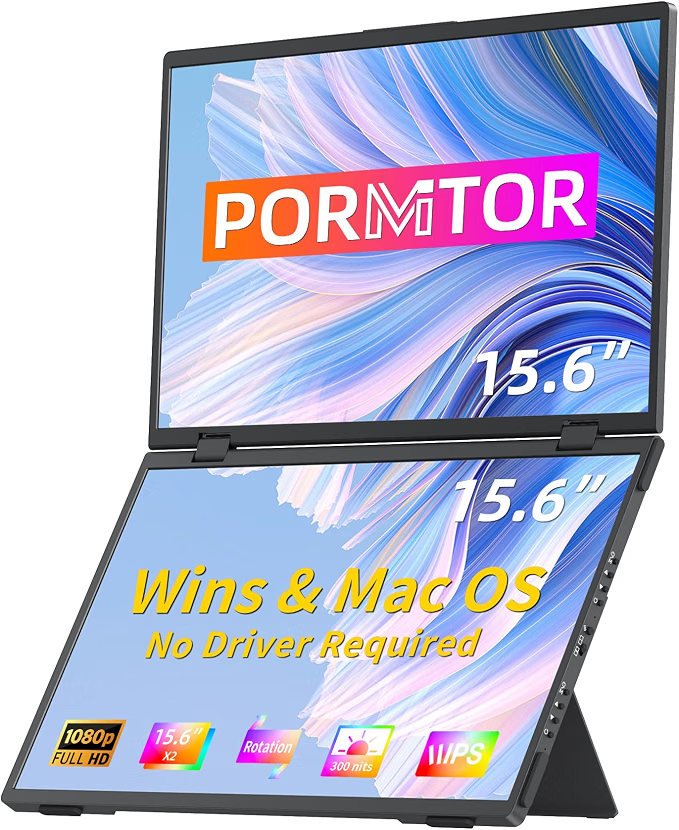
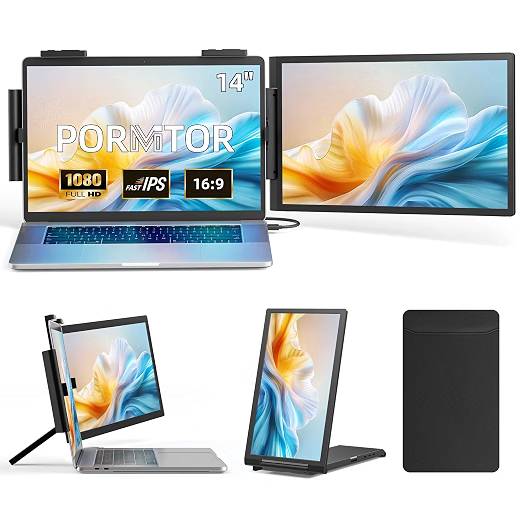
PORNITOR C140 Laptop Screen Extender 14" (USB-C / HDMI)
- 14" FHD IPS, 300 nits
- Rotates 250°
- USB-C or HDMI